TouchMod IN and TouchMod FX
Multitouch control for VST3® instruments and effects on Windows

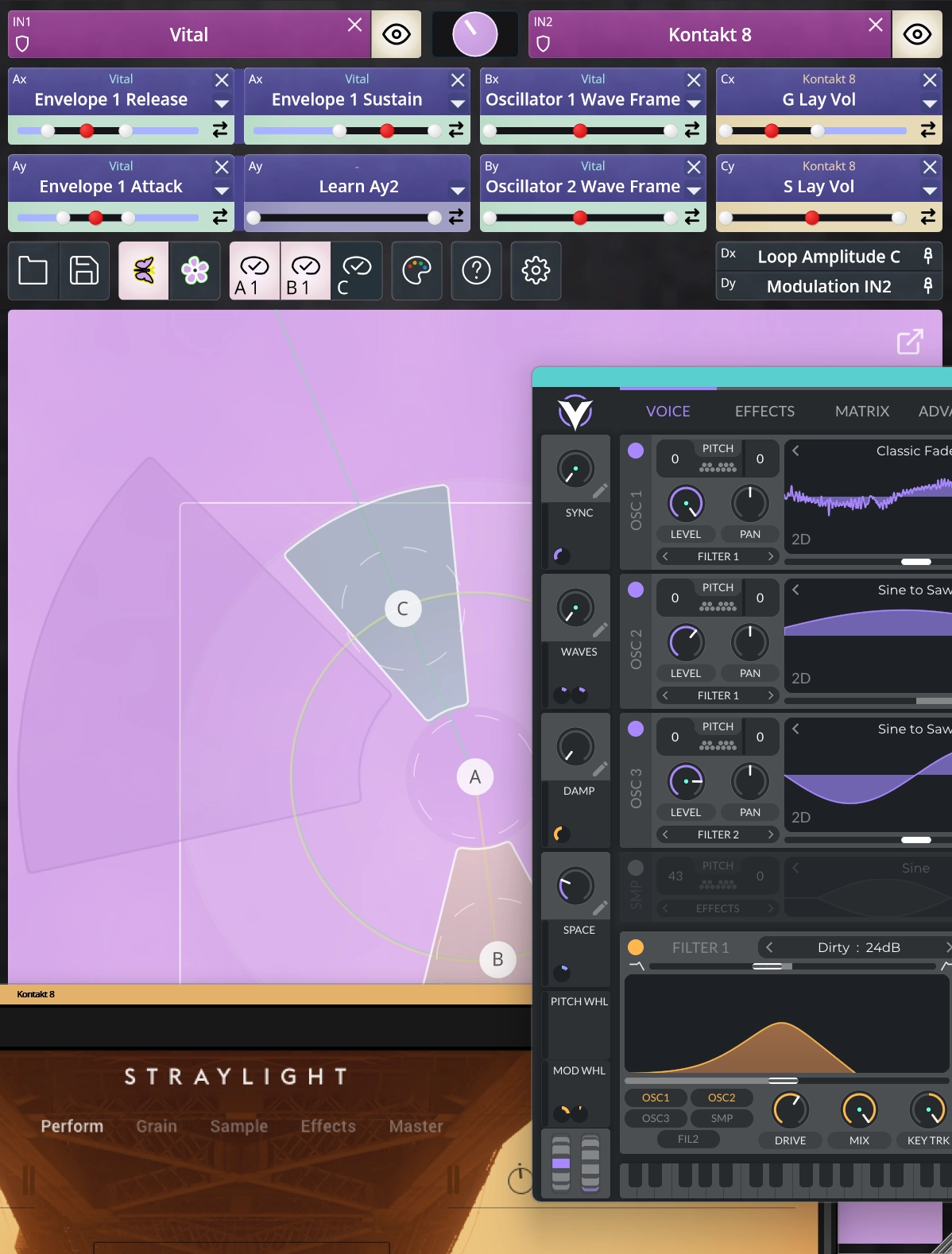
TouchMod IN
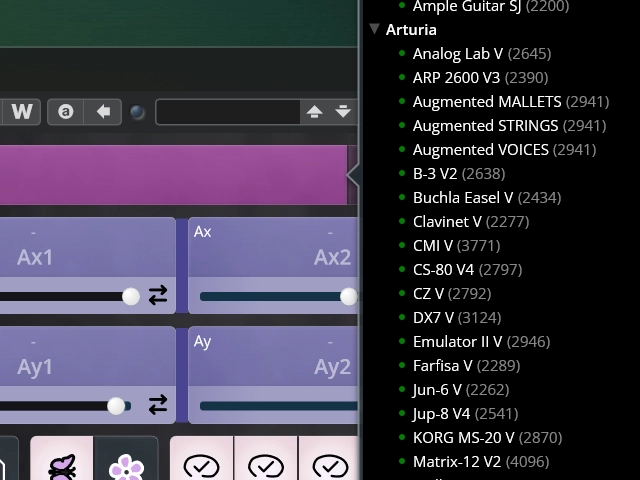
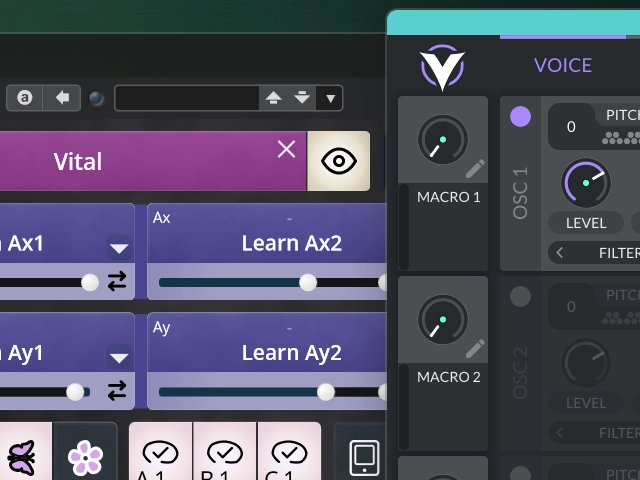
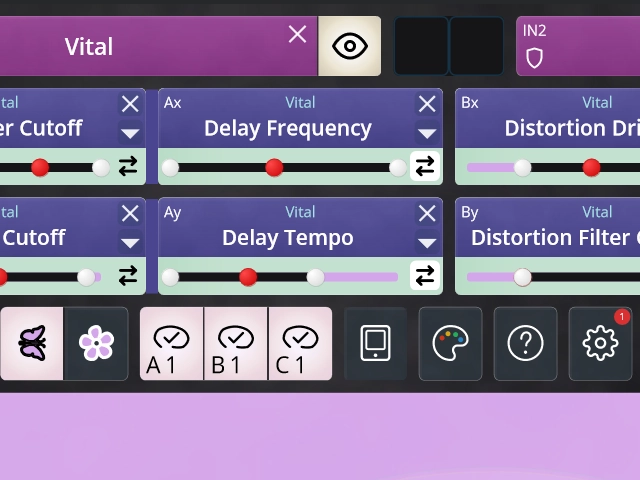
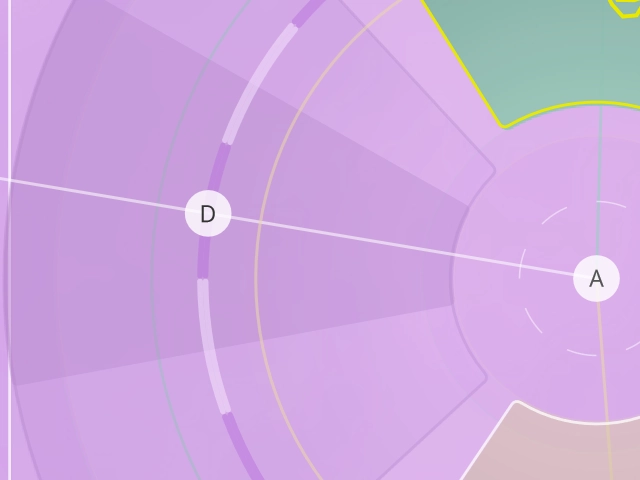
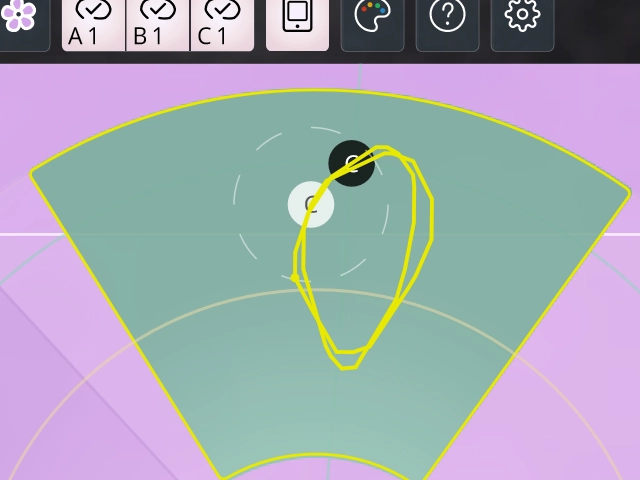
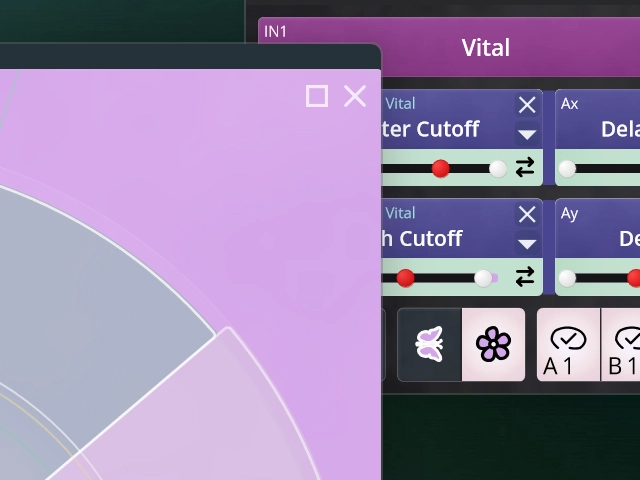
Bring multitouch control to synthesizers, samplers and other VST3 instruments. Assign the parameters that shape your sound, control up to eight of them with four fingers, and combine two instruments on the same touch surface.
Use a Windows multitouch display or connect an iPad with the free TouchMod Remote app.
Explore TouchMod IN →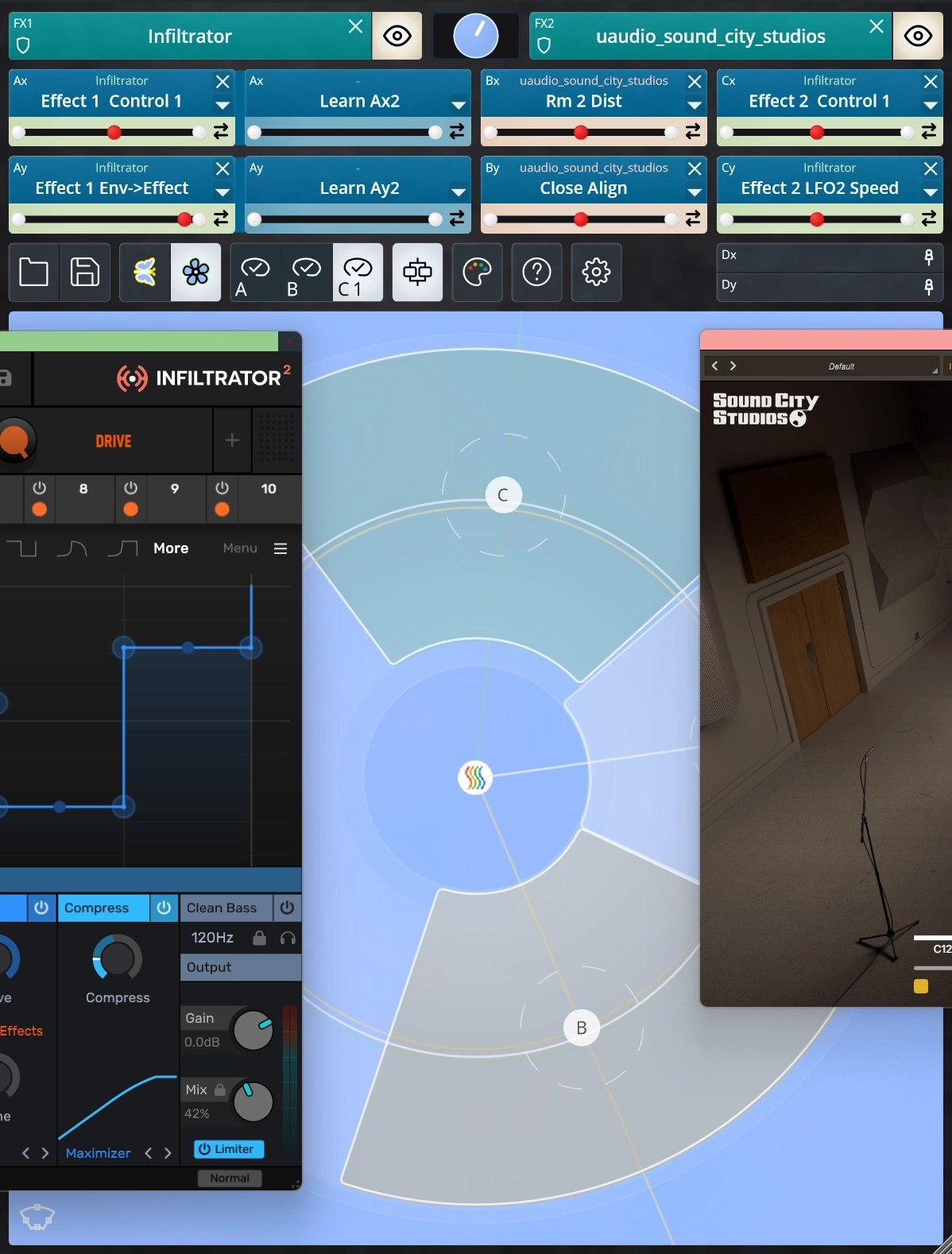
TouchMod FX
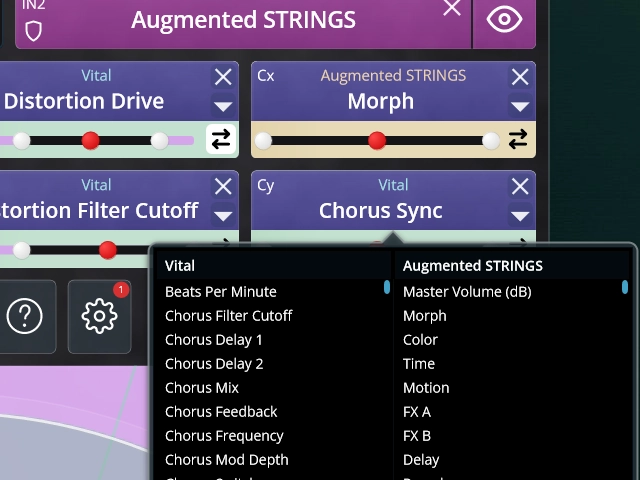
Perform with delays, reverbs, filters, distortion, modulation effects and other VST3 processors. Move several effect parameters together and host two effects in series or parallel within one TouchMod FX instance.
Control the pad from a Windows multitouch display or use TouchMod Remote on your iPad.
Explore TouchMod FX →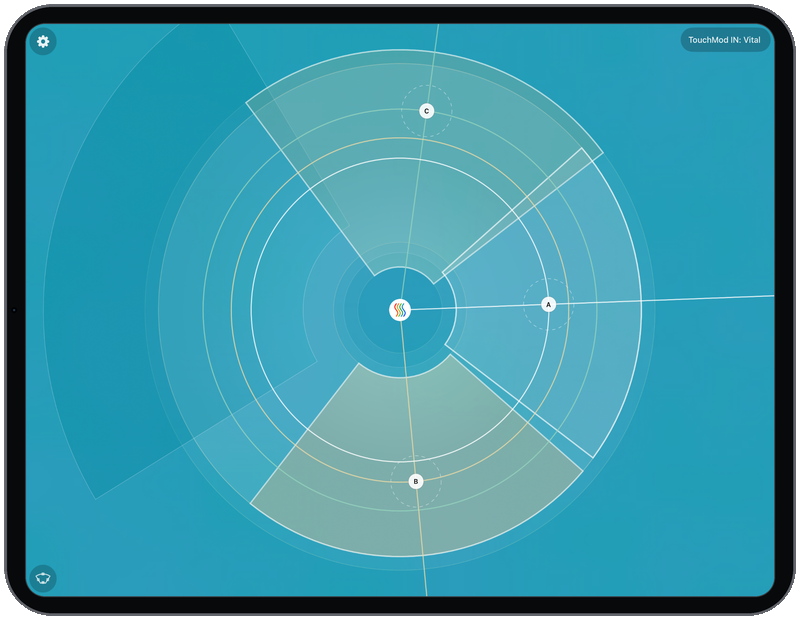
TouchMod Remote
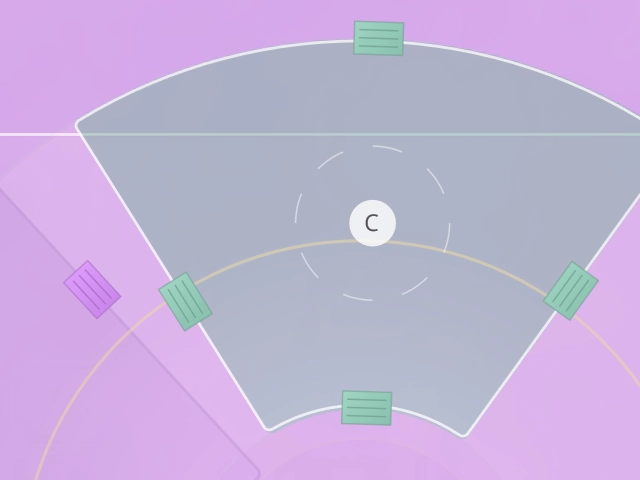
Turn your iPad into a wireless touch surface for TouchMod IN and TouchMod FX. The app connects over your local network and displays the active pad, assigned parameters, sector layout and recorded movements.
Keep your DAW and plugin windows on the computer while the iPad stays close to your hands.
Explore TouchMod Remote →Set Up TouchMod and Start Playing
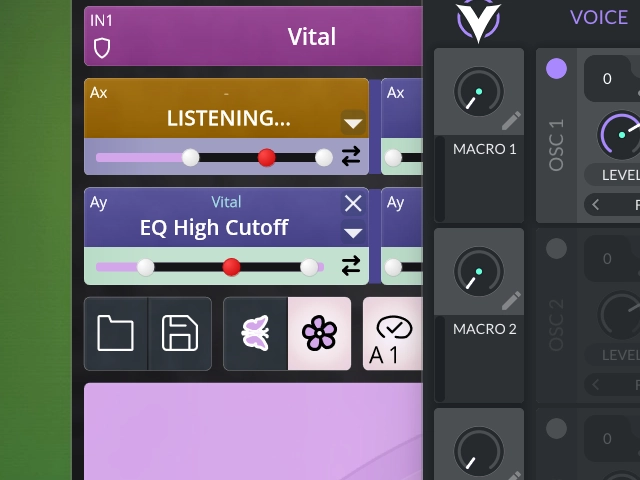
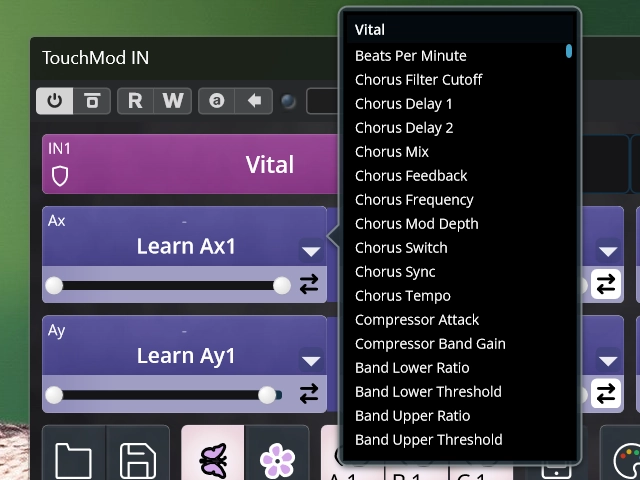
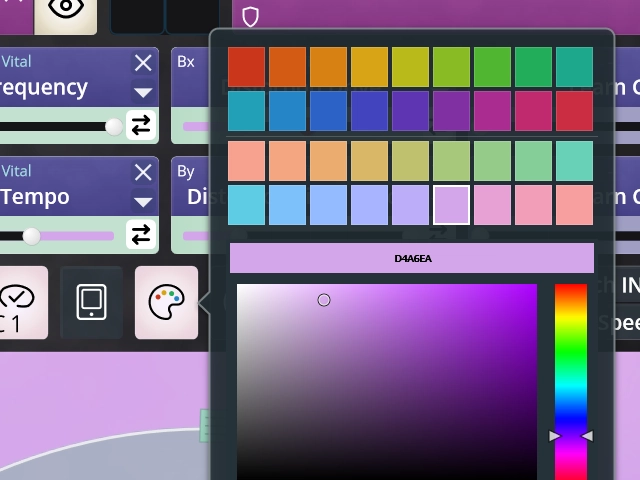
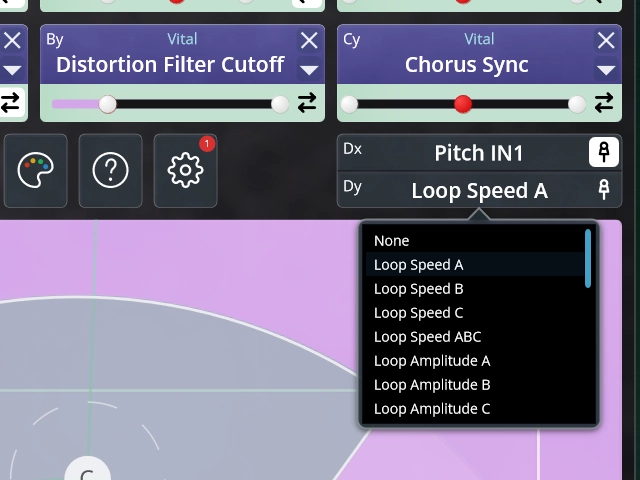
TouchMod IN and TouchMod FX follow the same basic workflow. Load a plugin, choose the parameters you want to control and shape the touch surface around the way you play.